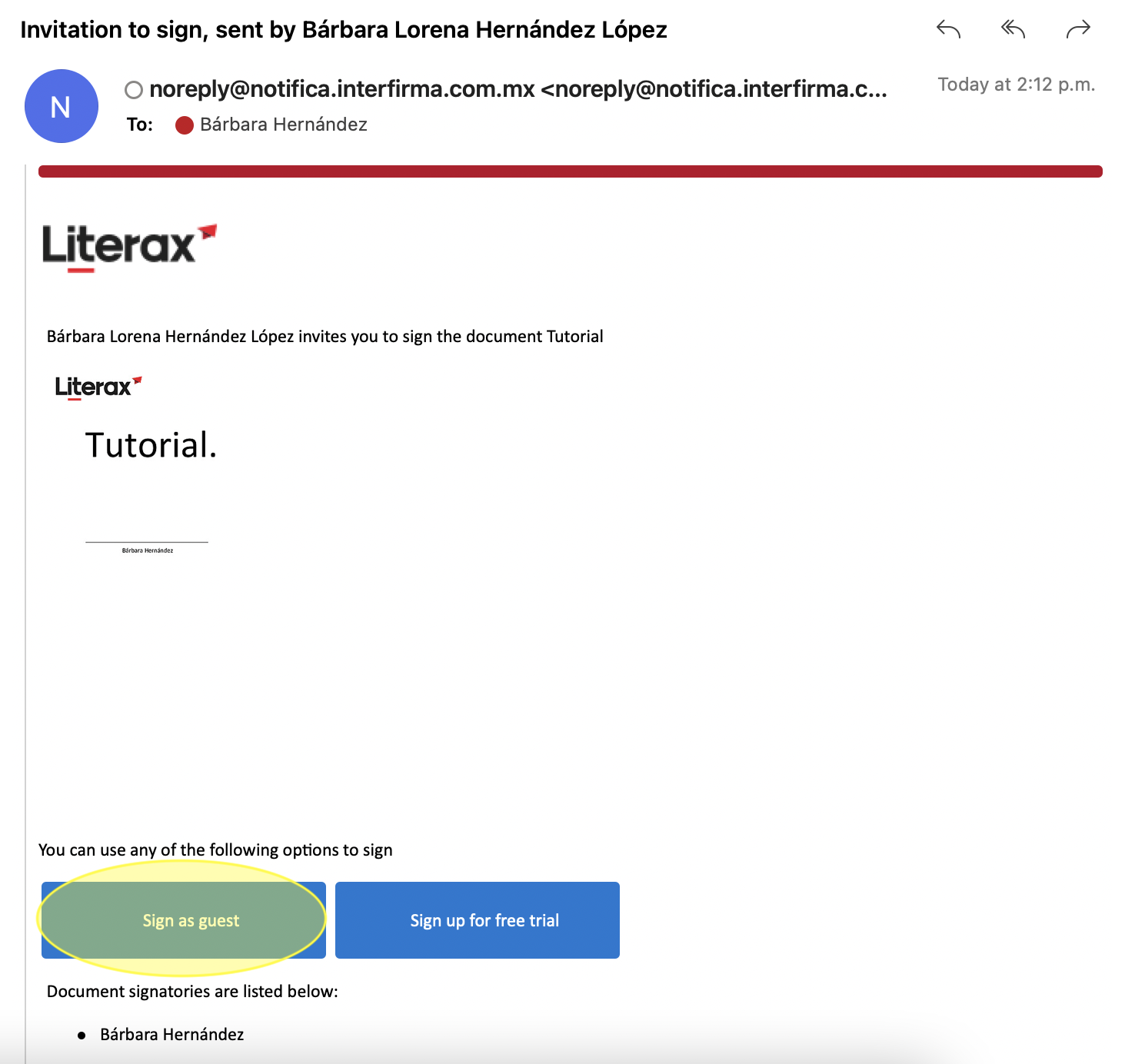
Did you receive an invitation to sign via email?
1. Select Sign as guest if you do not have a registered user account or you can log in.
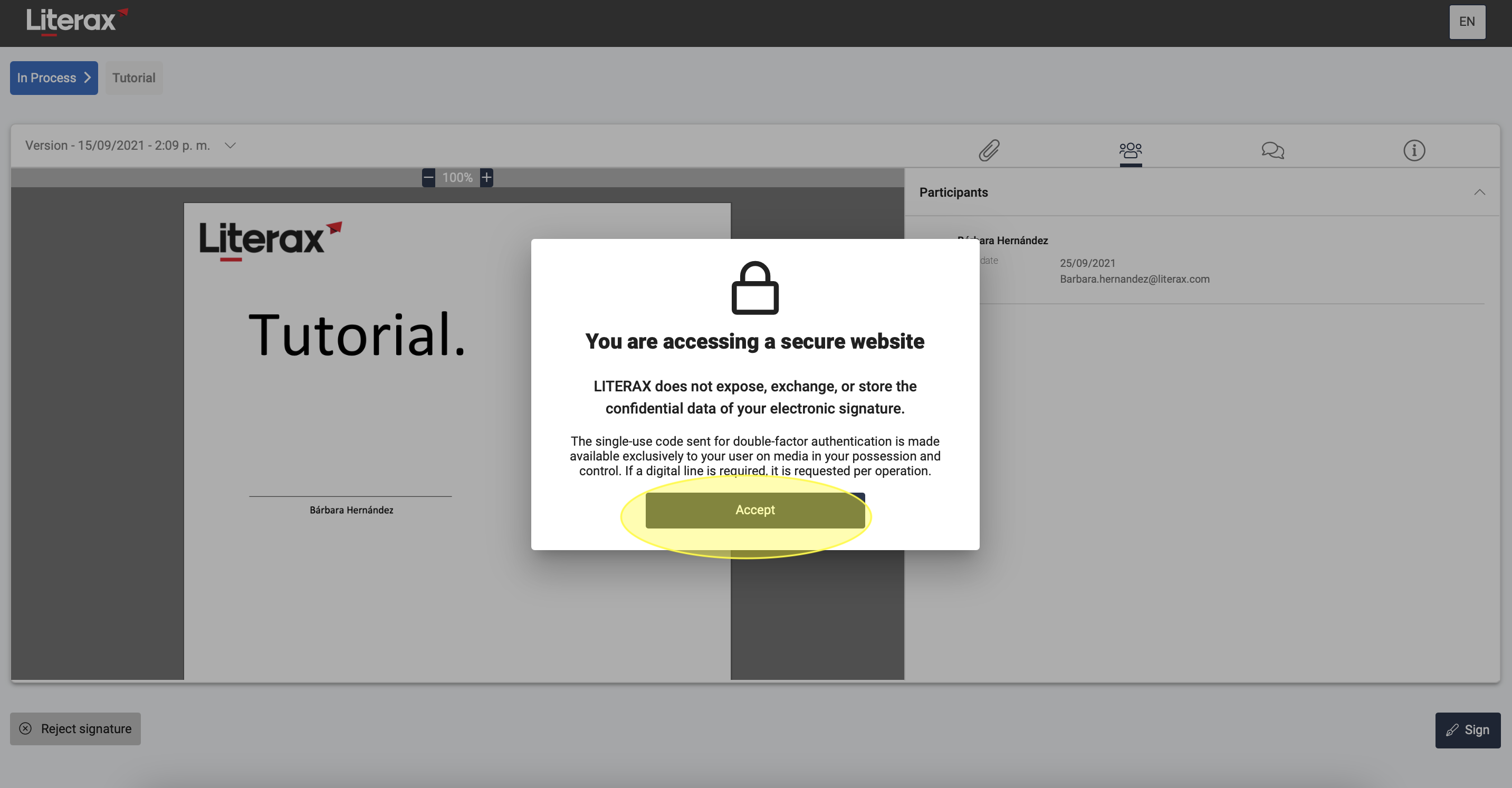
2. Read the document and its attachments.
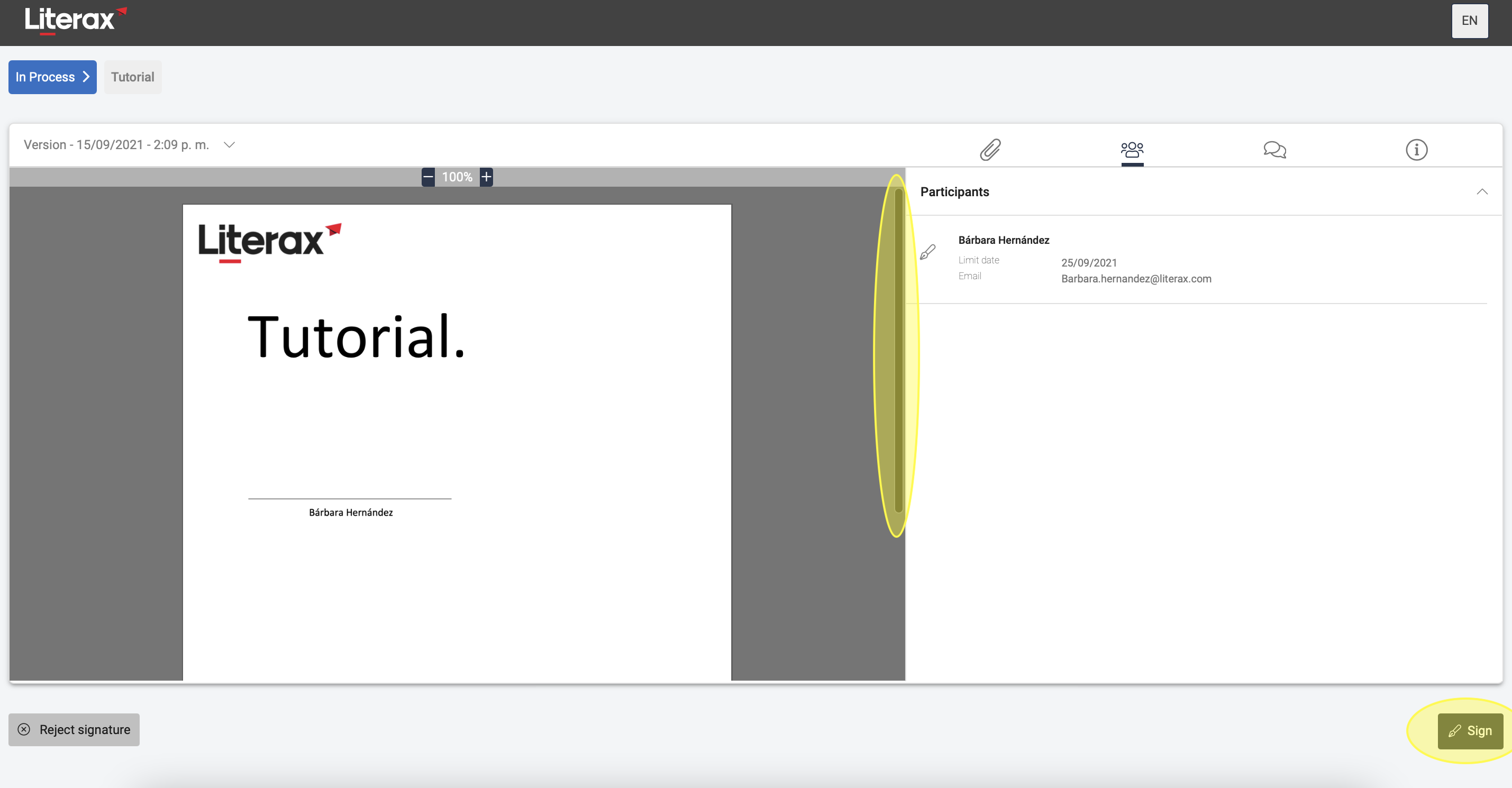
Make sure to scroll to the end of the document and attachments or else the signature button will not be enabled.
3. Click the Sign button located at the bottom right.
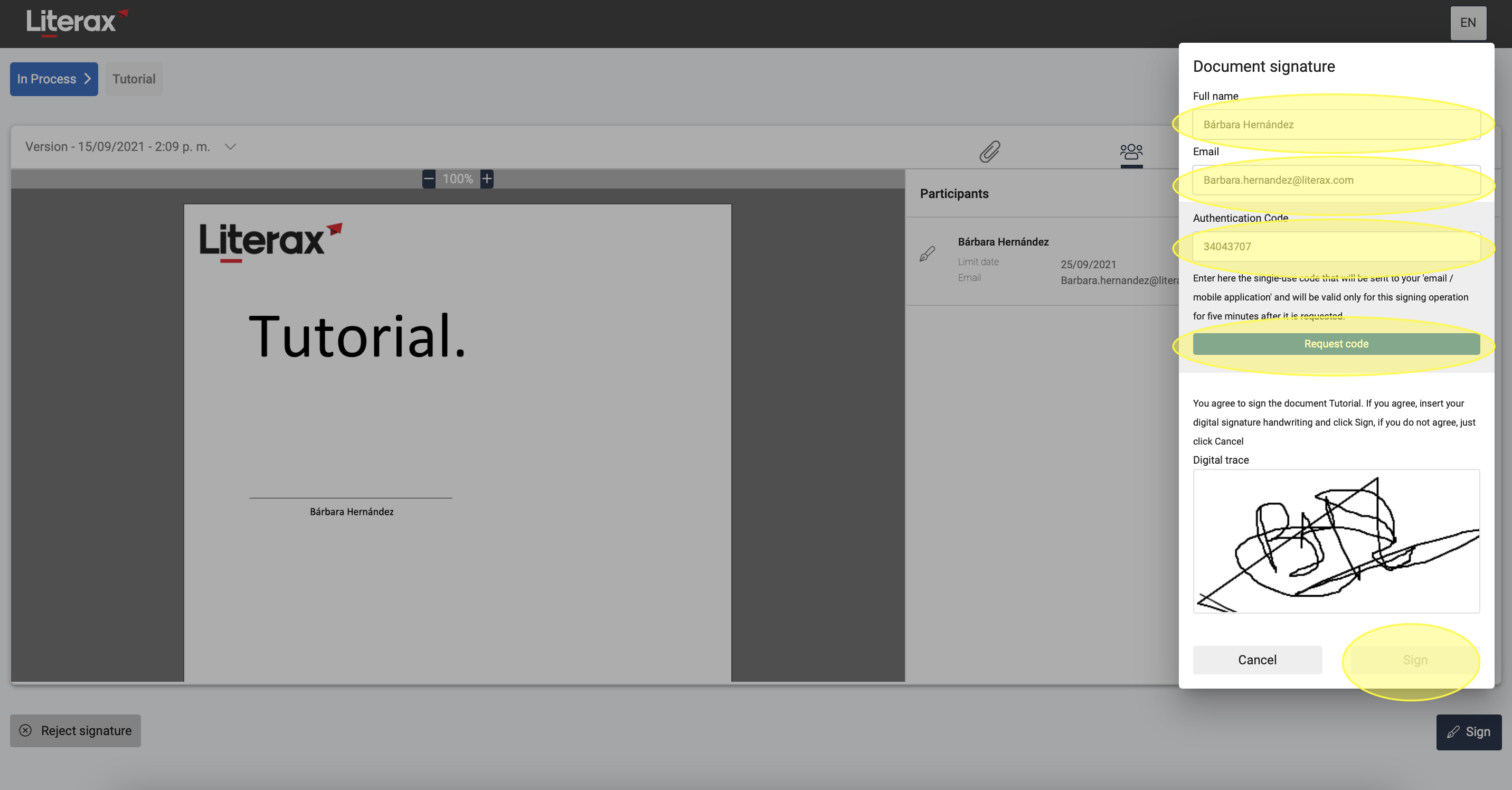
4. Complete the requested information.
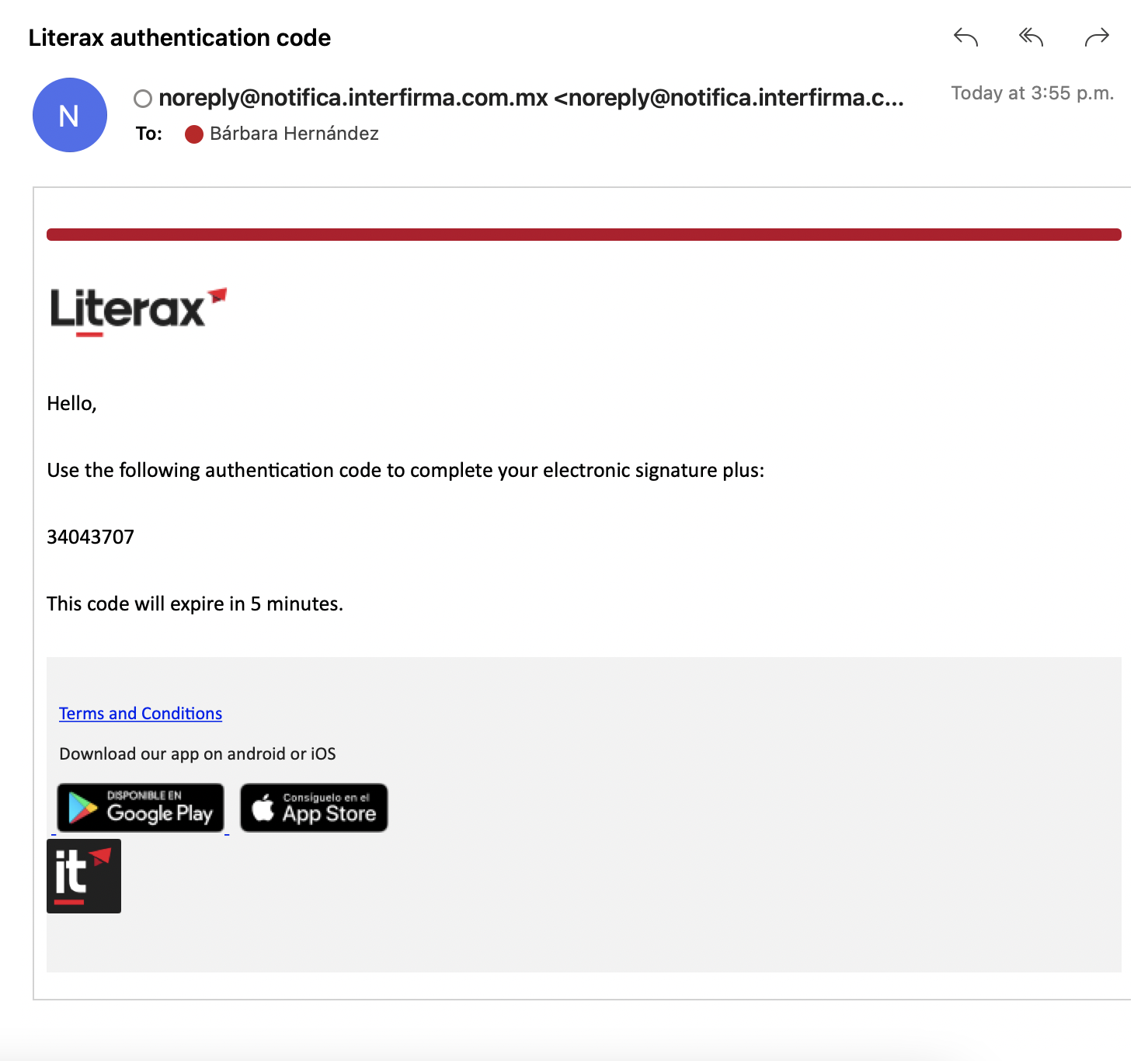
* ELECTRONIC PLUS SIGNATURE: Click Request Code only once.
You will receive the authentication code via email. Copy and paste it without spaces so that the box where you will make your digital trace is enabled. If you requested the code more than once, make sure to use the last code received because it will be the only one in effect.
5. Click the Sign button to complete the process.
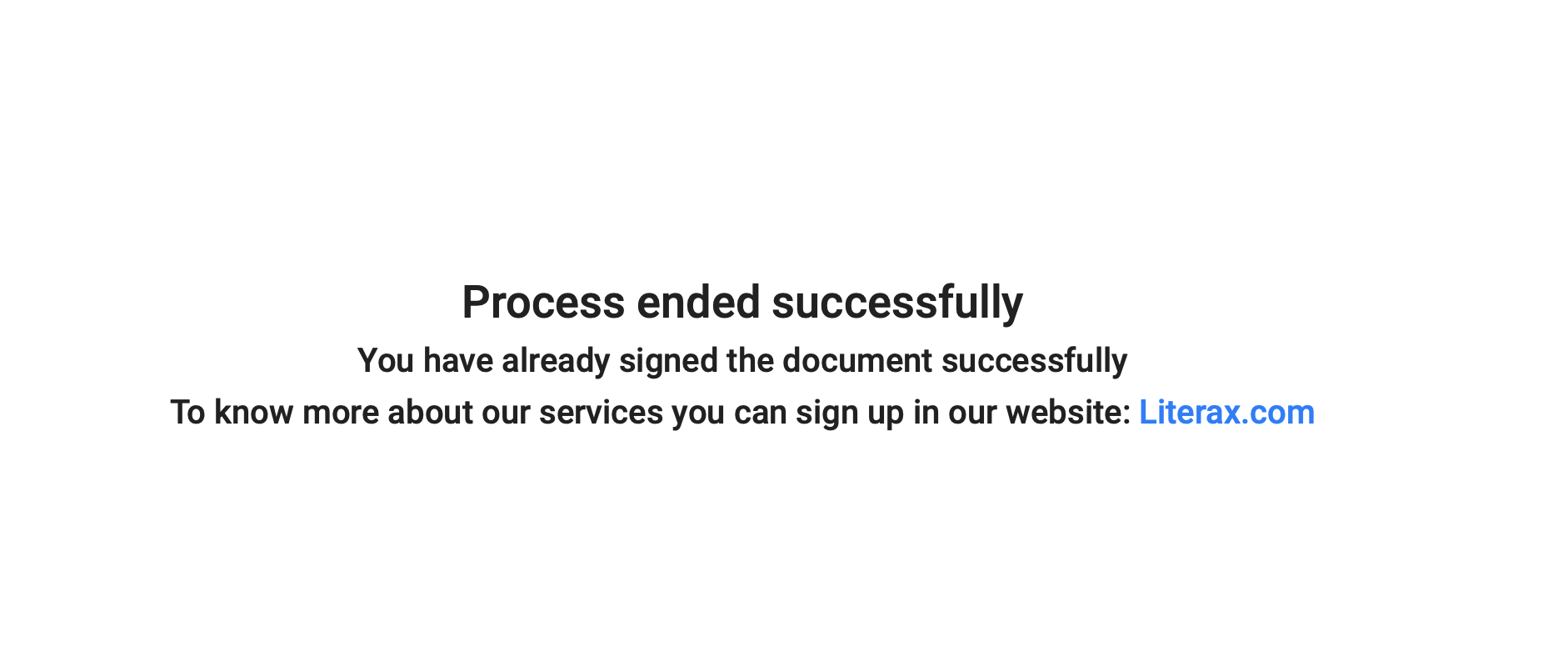
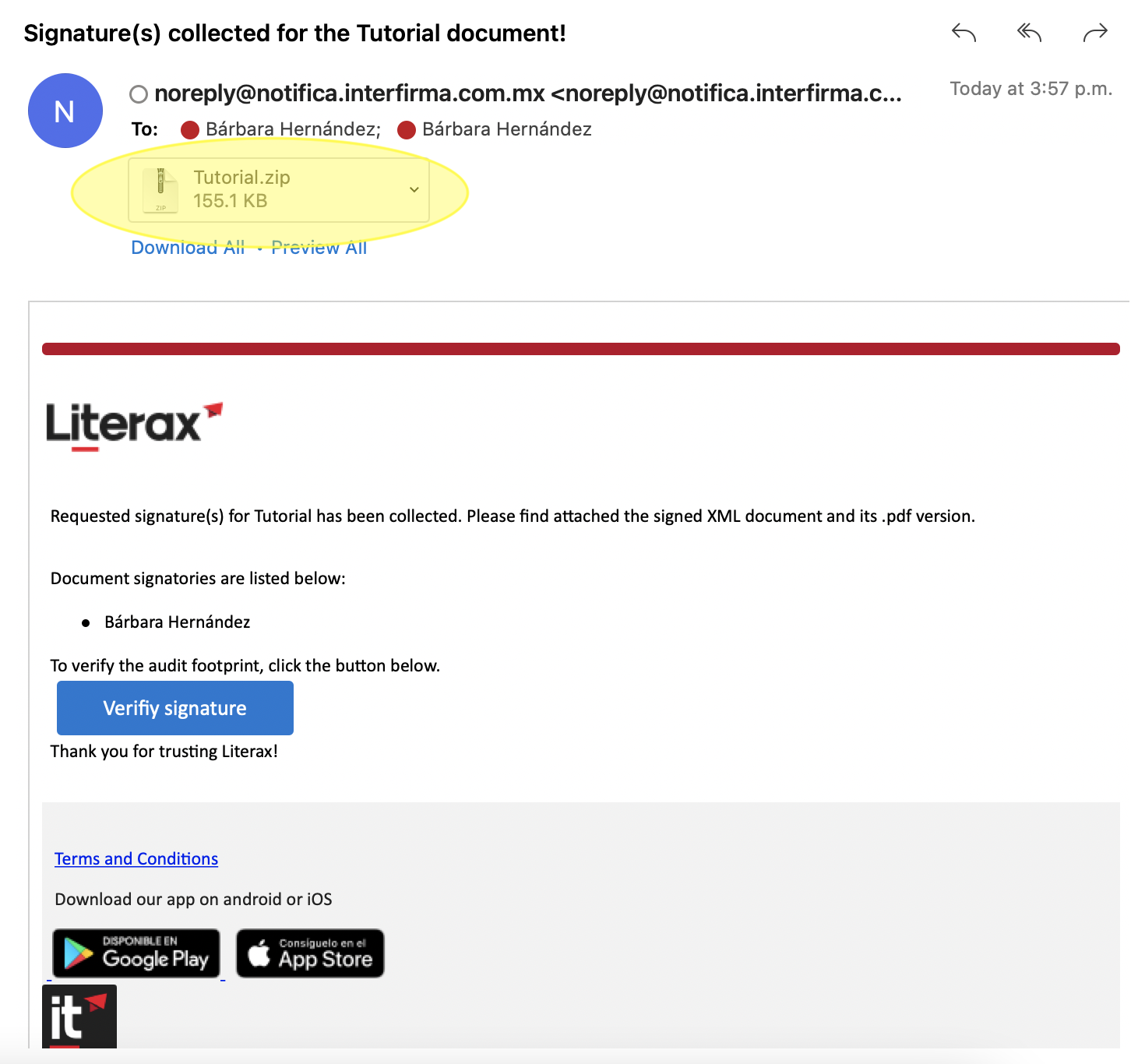
You will receive an email when all the required signatures have been collected with the .pdf and .xml files of the signed document.