
You can upload your Digital Signature | e.Firma to the Cloud of your choice: Dropbox, iCloud, Google Drive, just to mention a few. Here is an example with Google Drive.
- Log in to your Gmail or Google account.
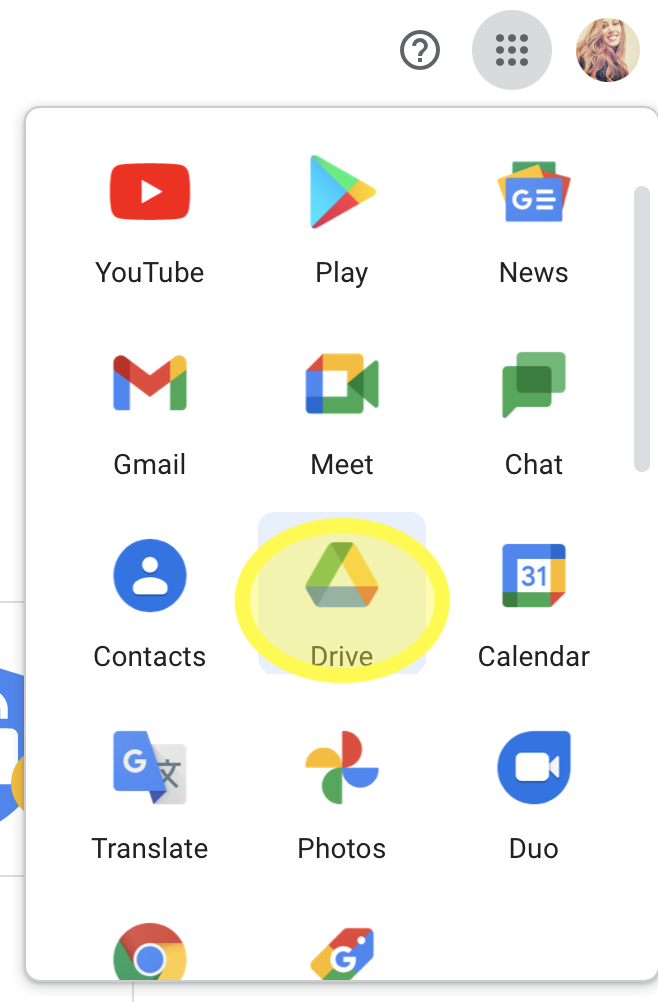
- Select the icon that appears in the upper right corner with 9 small squares.

- Enter the Drive application
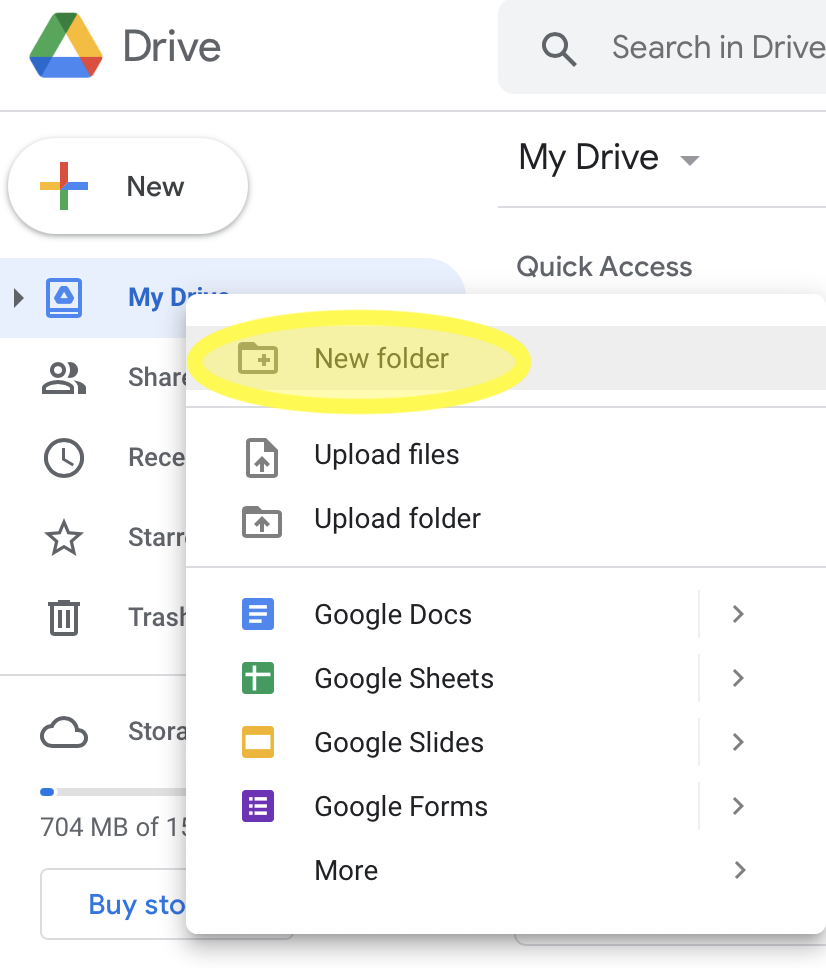
- On the Drive page, right click on My Drive > New Folder
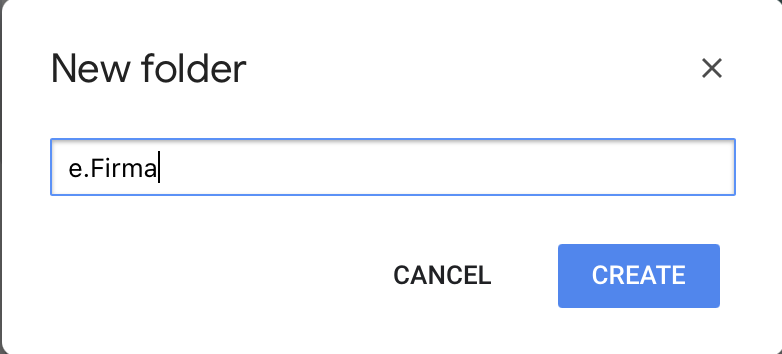
- Assign a name to the folder where you will upload the files of your e.Firma
- Open the newly created folder where you want to store your e.Firma files
- Keep the window open and copy your e.Firma files from their location on your computer.
- Make sure the upload is complete so that you can access the files from your mobile device.
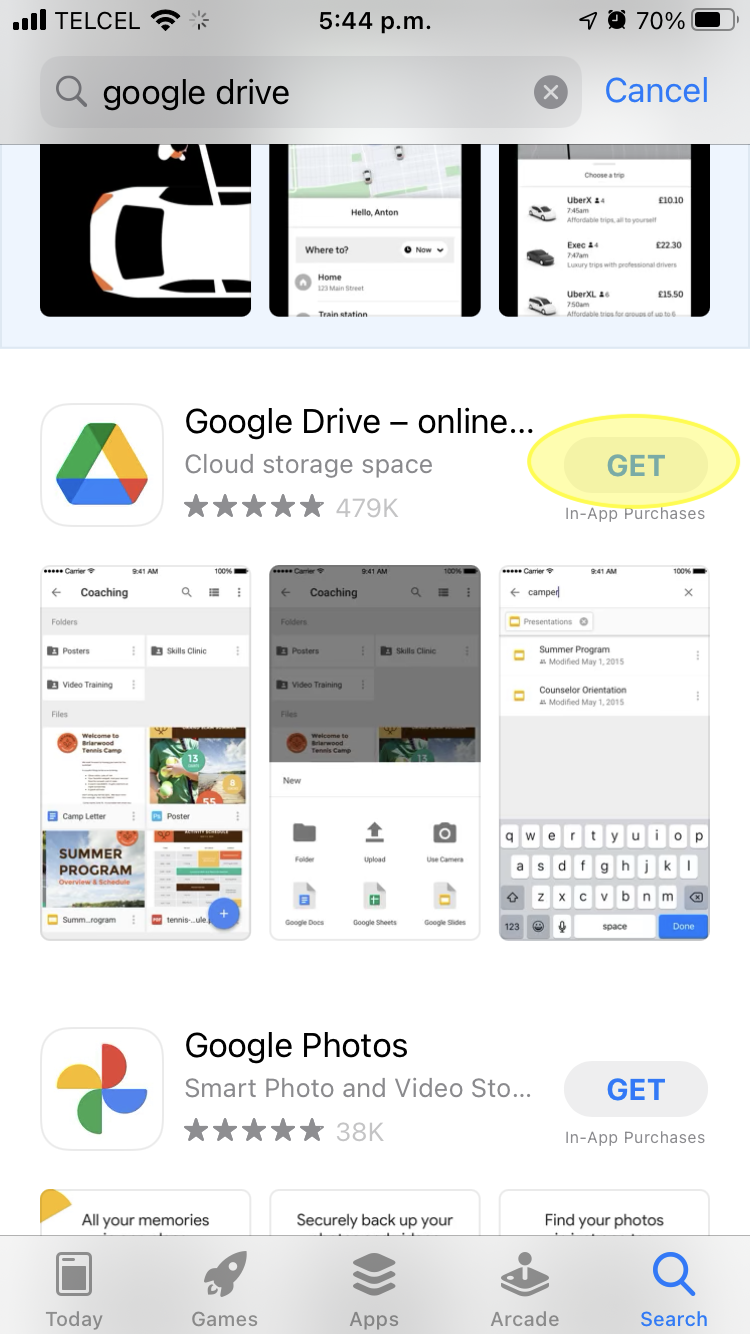
- Now, on your mobile device, download the Google Drive application and locate the folder where you stored your e.Firma files
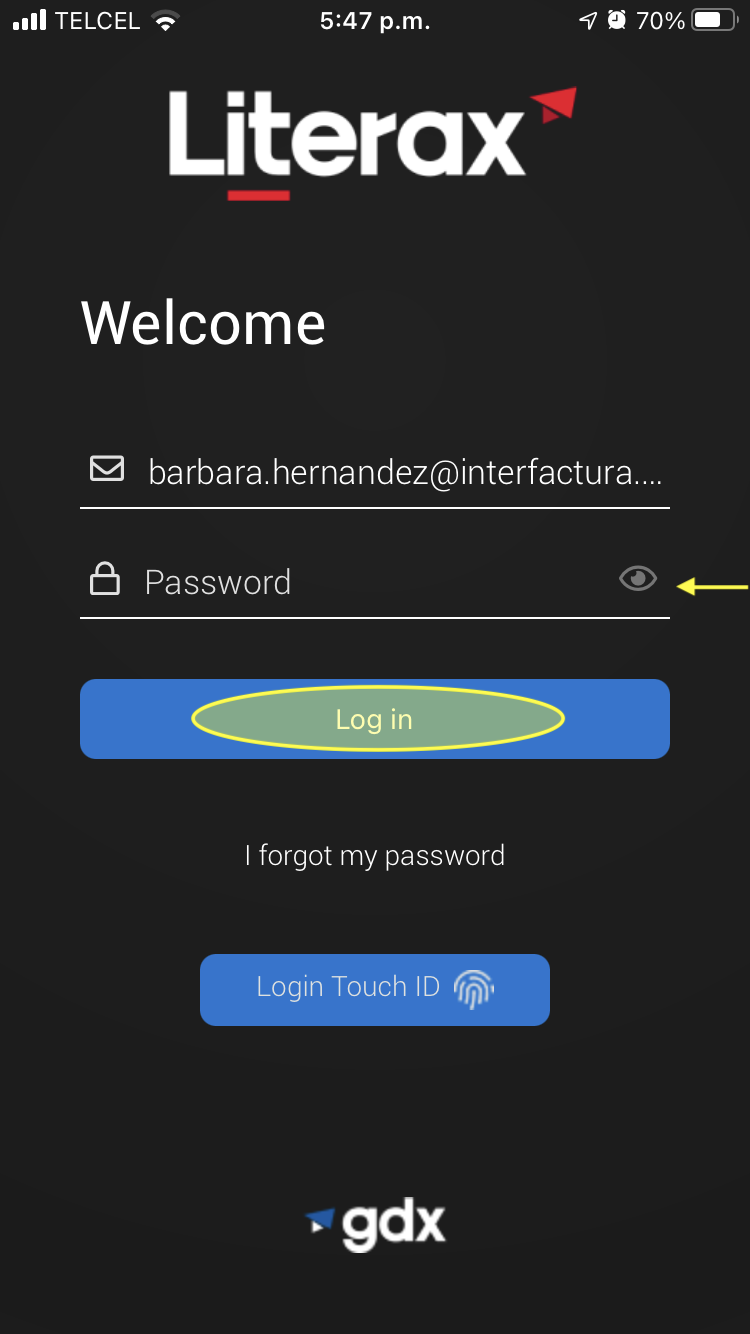
- Open the Literax application | Interfirma and log in.
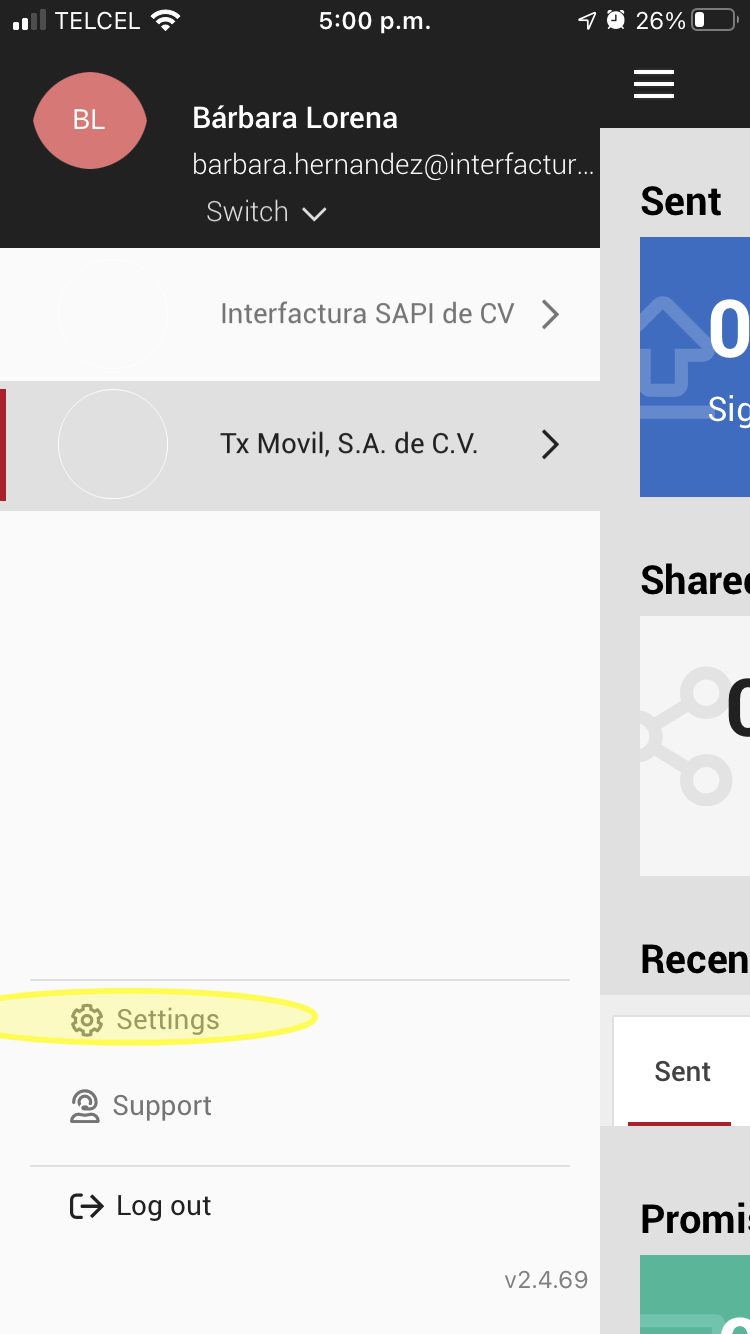
- Clic Settings.
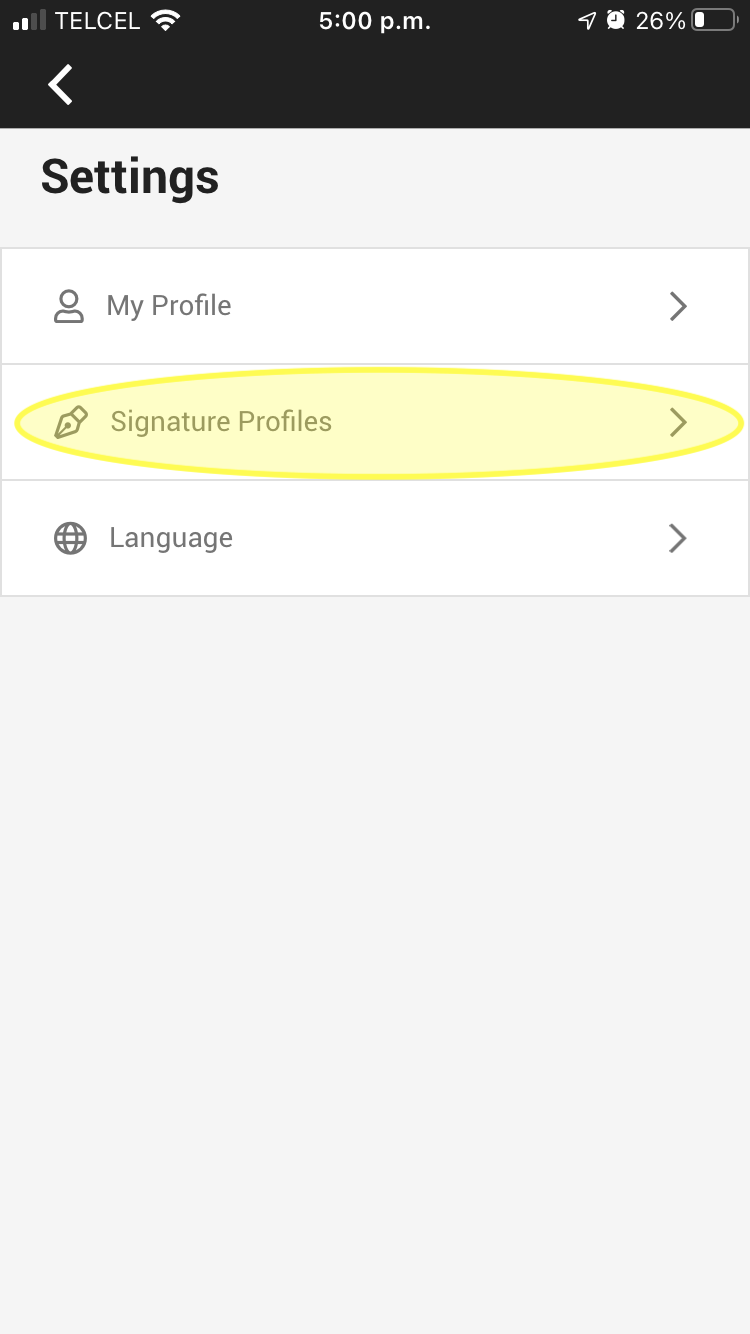
- Go to Signature Profiles.
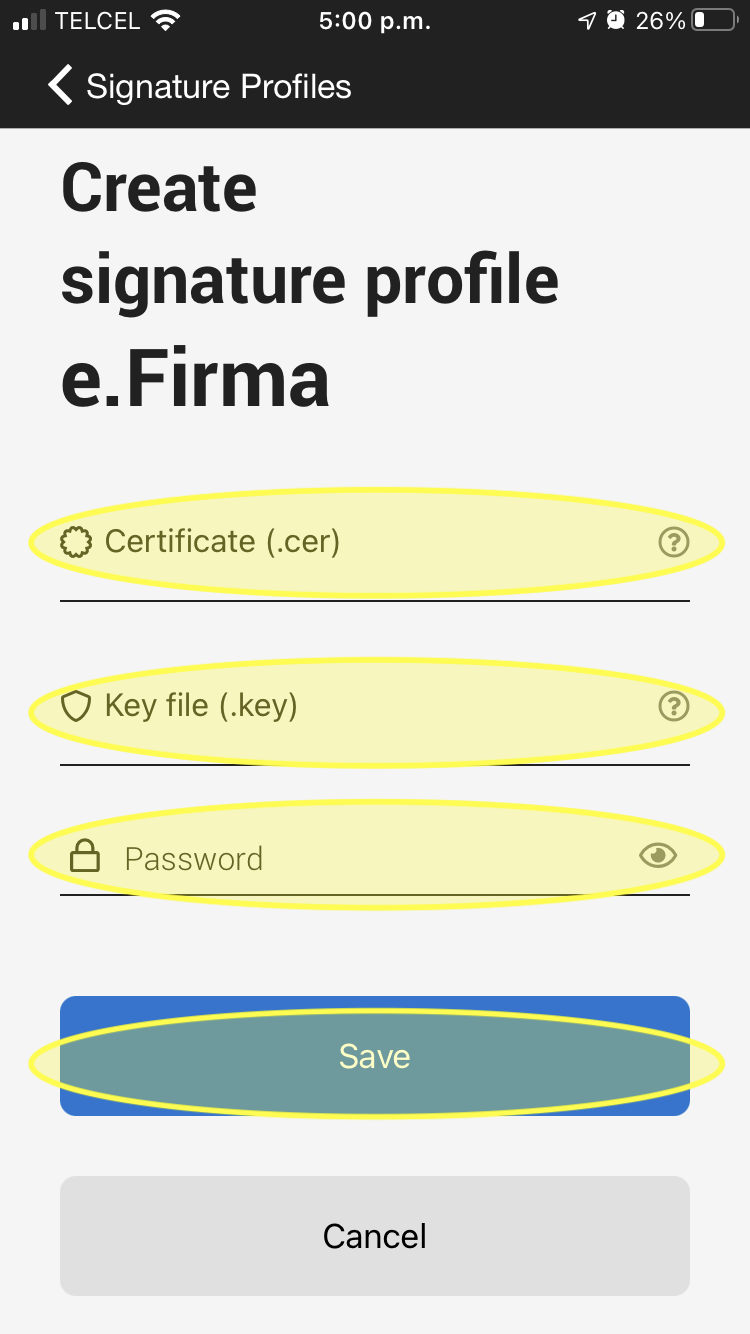
- Select the Certificate | .cer field, and the file manager will open to navigate the Google Drive folder where you stored your e.Firma files. Select it and repeat the process for the Private Key | .key field
- Enter the password corresponding to your e.Firma
- Once the corresponding data has been captured, the link between your profile and the location of the files of your e.Firma will be created.
REMEMBER! Literax DOES NOT STORE, SAVE, or HAVE ACCESS to the confidential data of your e.Firma, these remain at all times in YOUR EXCLUSIVE CONTROL as Owner.