
The documents sent for signature are listed in chronological order by the document´s creation date (from the most recent to the oldest) and can be consulted in the following 2 sections of the platform via the web:
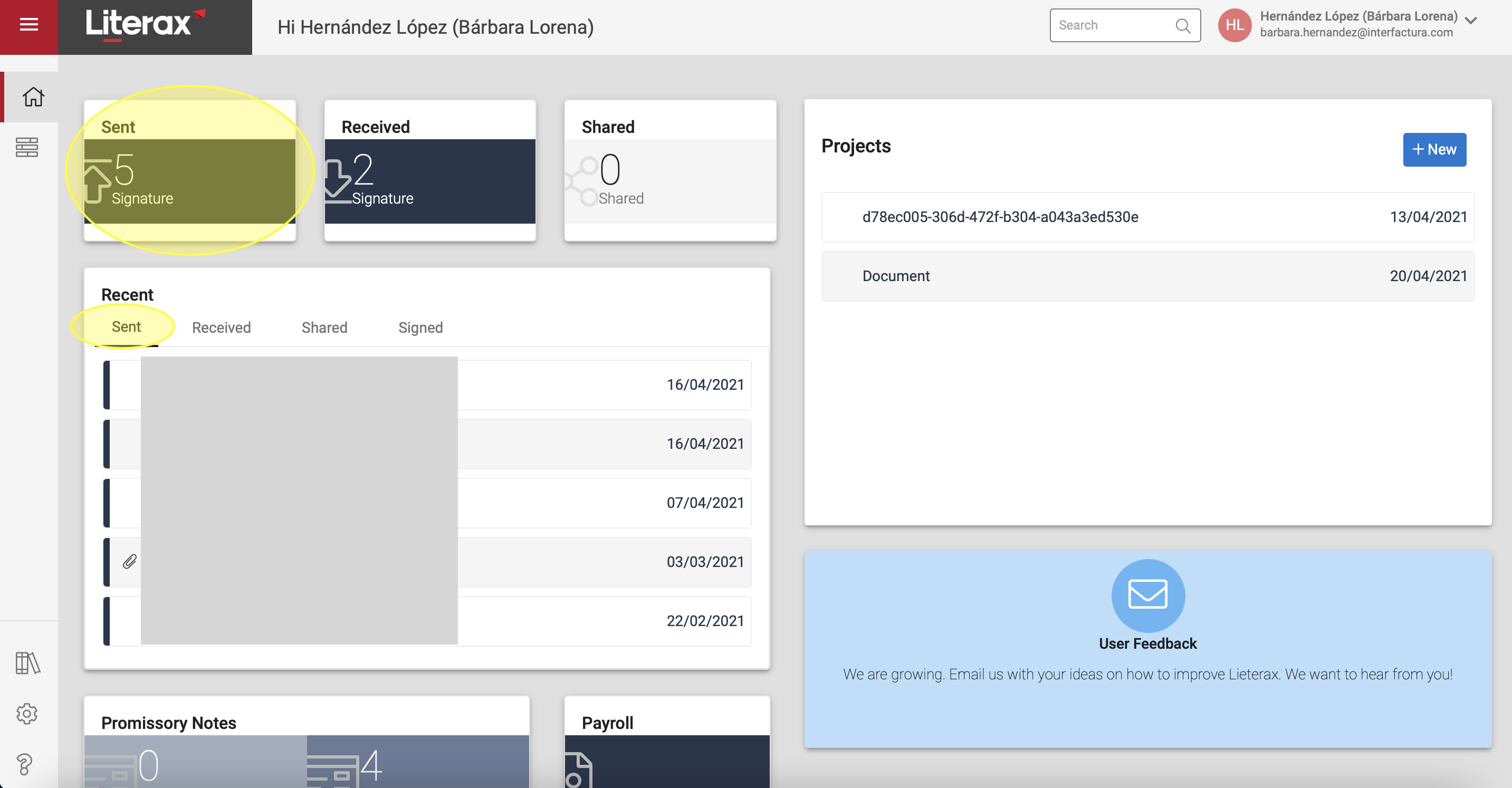
1. "Sent" panel found in the Dashboard of the platform or Home page. In this section the user will be able to view the number of documents that have been sent for signature from that account.
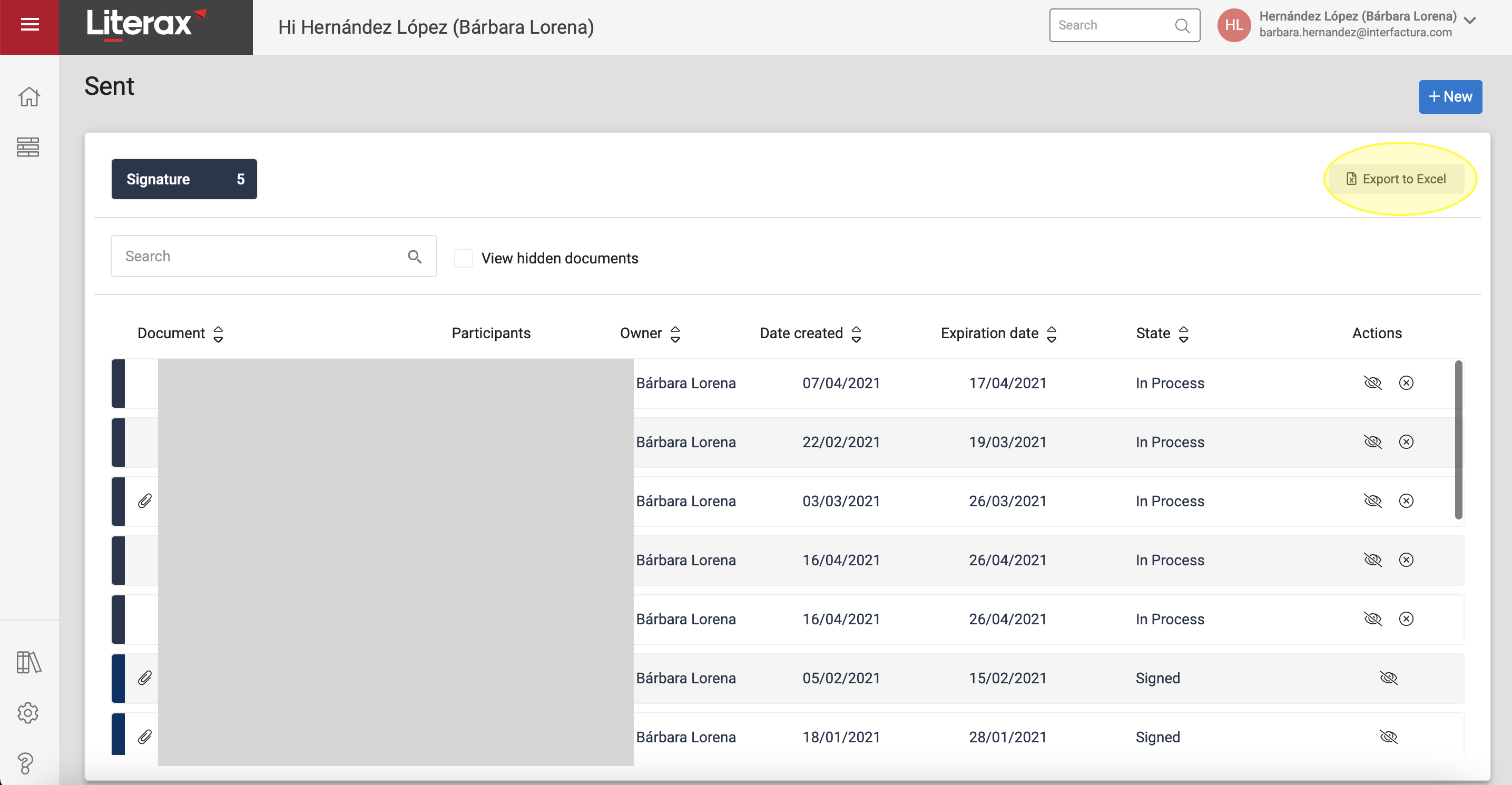
Clicking on the panel will display the screen with the list of all the documents sent in chronological order from the most recent to the oldest by date of creation of the document, as well as the status of said document, that is, if the document is currently "signed", "in process" or "rejected".
To view the content of each of the documents sent, you just have to click on the name of the document you want to access.
The list of documents sent for signature, their status and their details can be exported to an Excel document by clicking on the "Export to Excel" icon found in the upper right part of the screen.
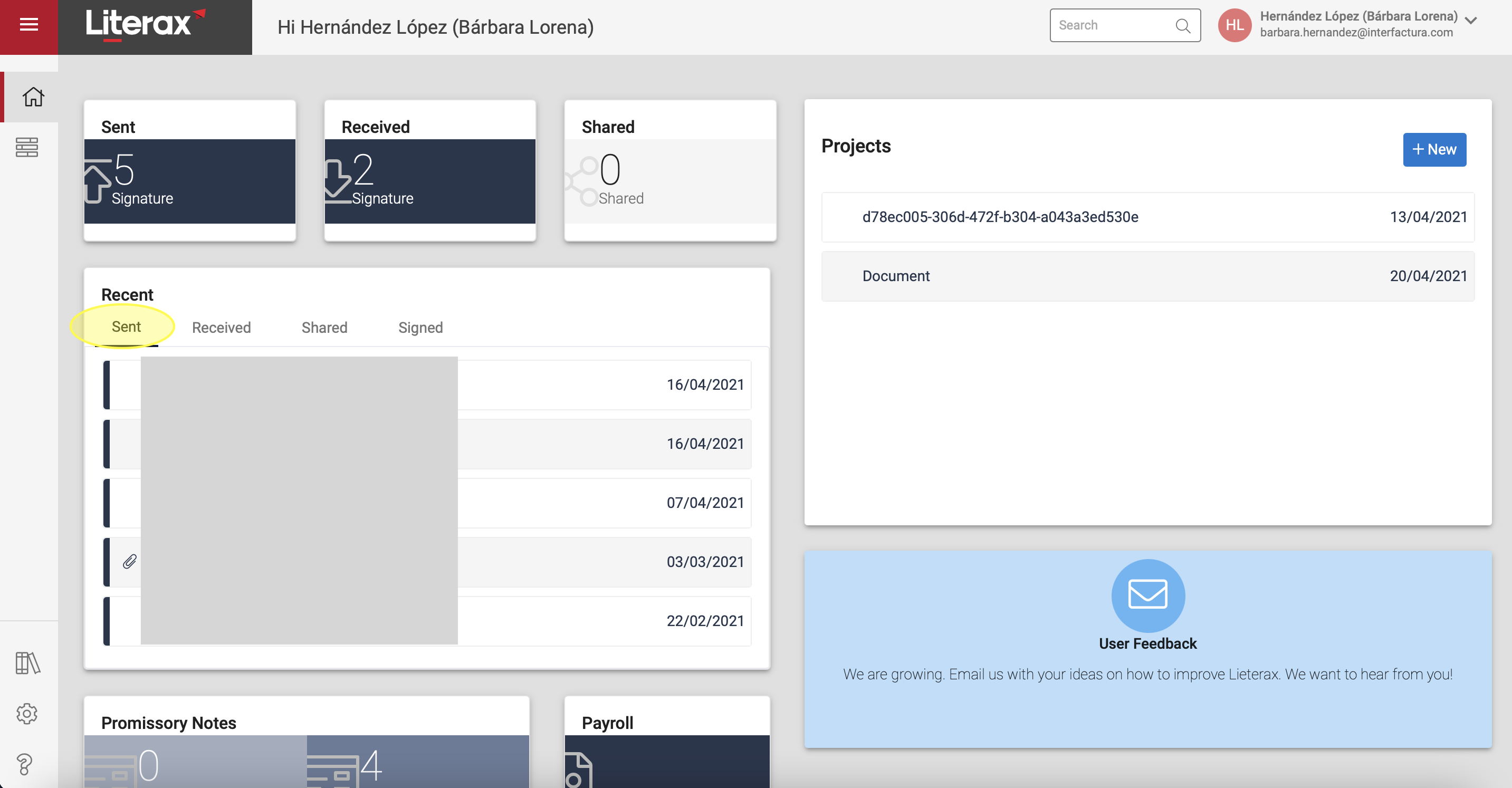
2. "Recent" panel found in the Dashboard of the platform or Home page.
The user must go to the "Recent" panel and click on the "Sent" tab. You will be able to view in the form of a list the name of the last documents that have been sent for signature from that account, as well as the date on which each document was sent for signature.
In the same way, the sent documents can be consulted from the Interfirma application. For this you must follow the following steps:
1. Download the Interfirma application available in the official stores for Android and iOS.
2. Enter the application with your Interfirma username and password.
3. Once logged in, you must select the "Sent" panel.
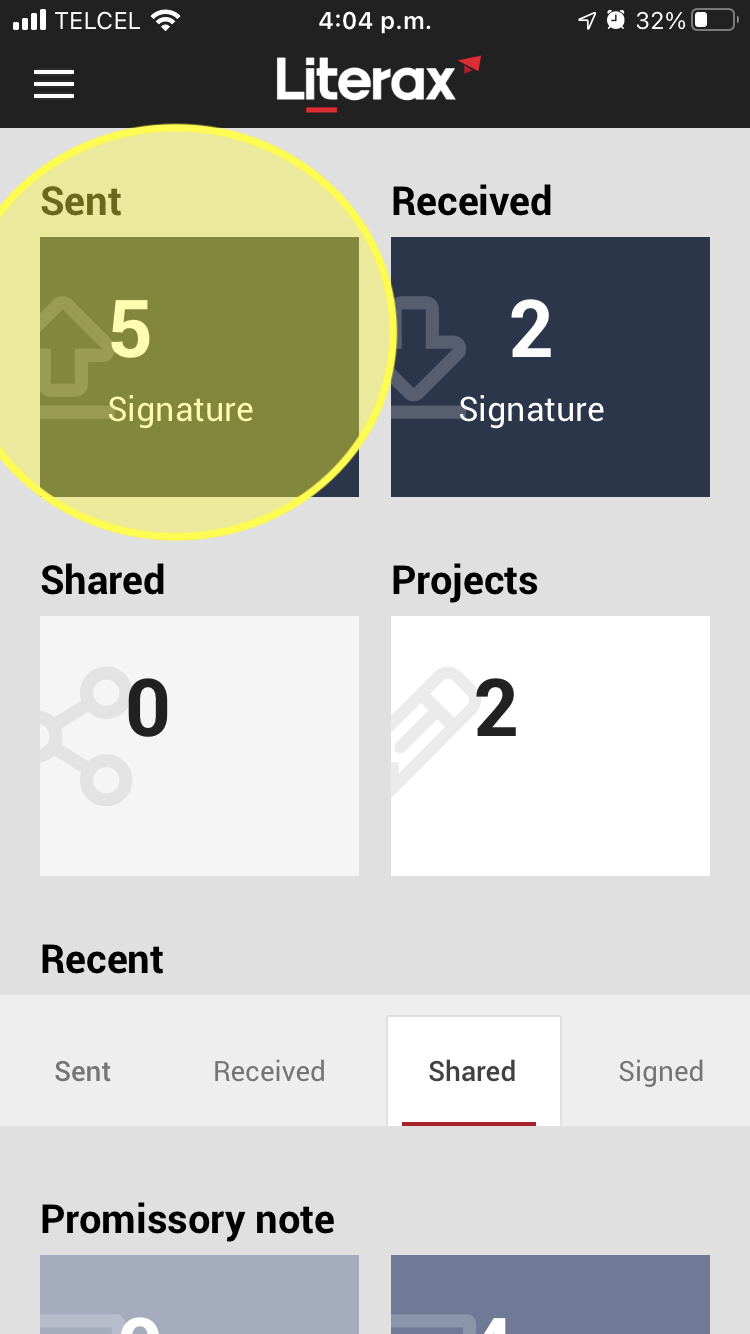
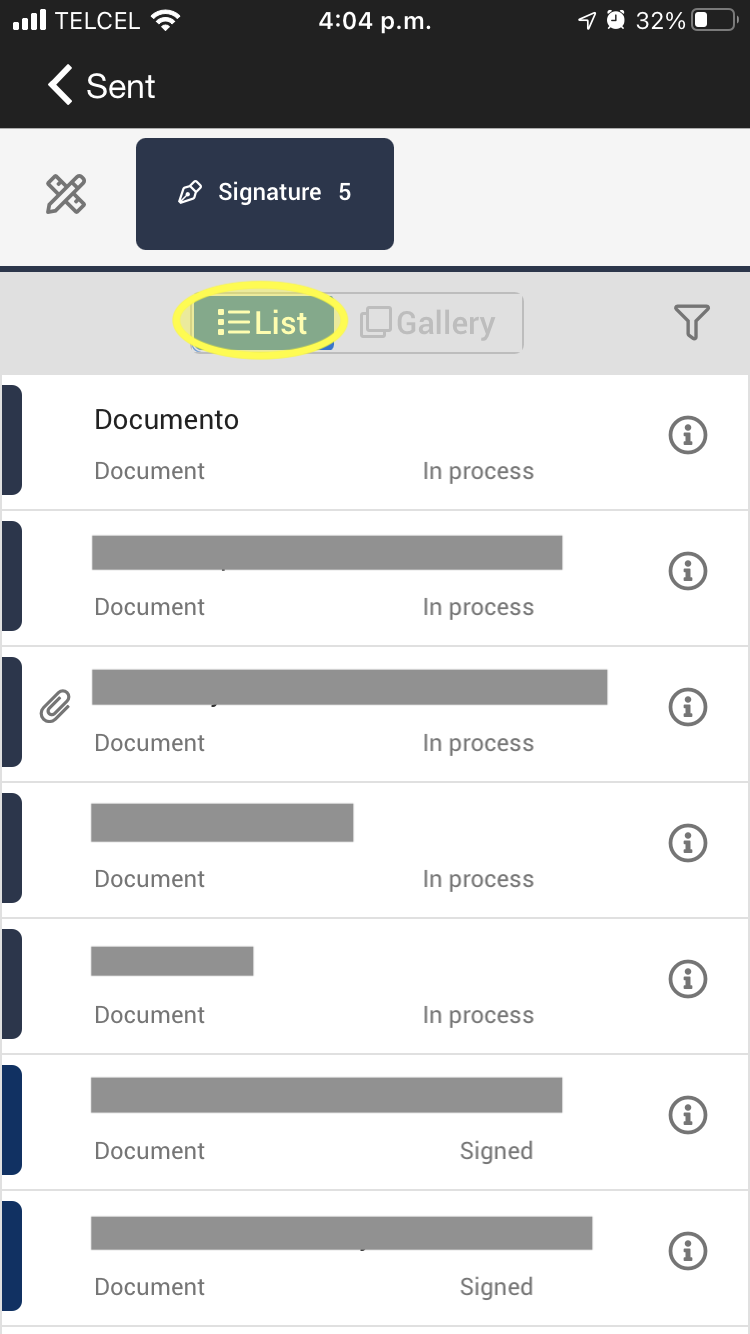
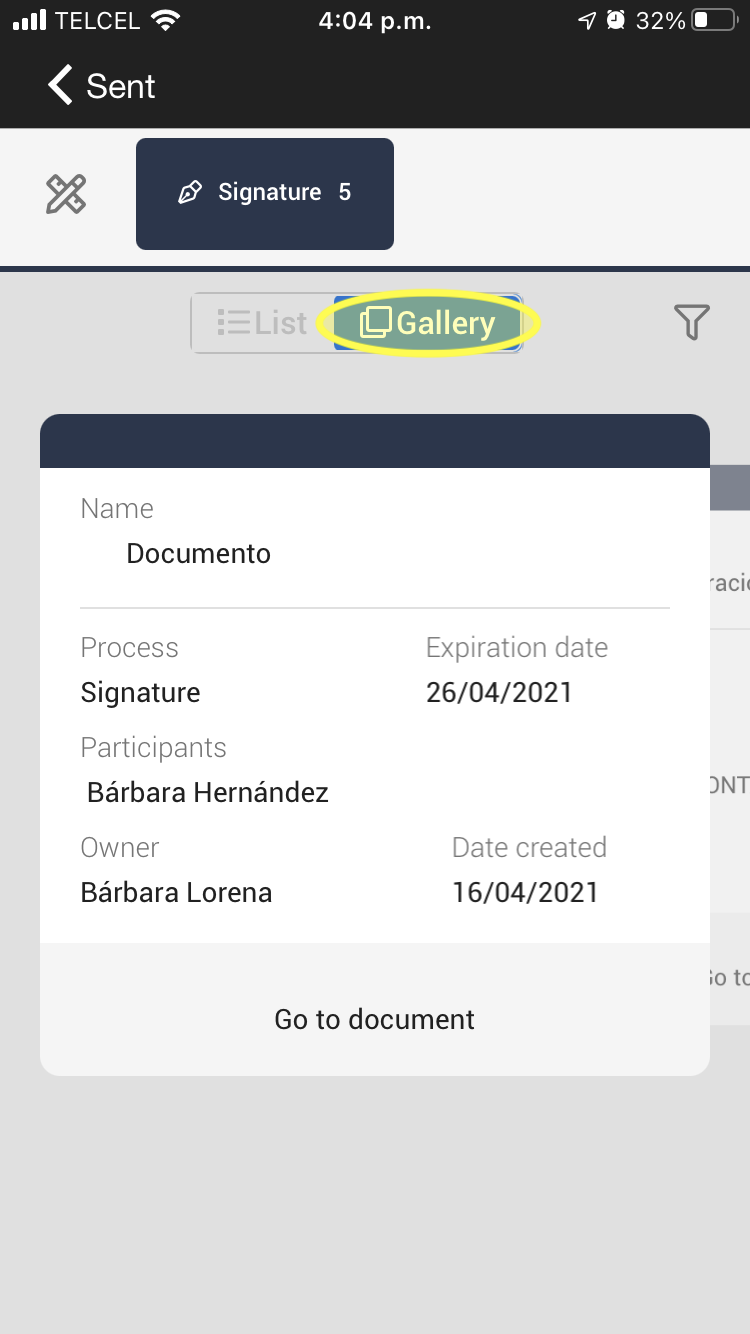
4. Next, the application will show you the documents sent in 2 ways for your selection:
• In a list form: when touching the “list” icon, the list of documents sent for signature will be displayed in chronological order by date of expiration of the invitation to sign (from newest to oldest), indicating the name of the document and the signature expiration date.
• In the form of a gallery: if you wish to view the list of documents in the form of a catwalk or gallery, you must tap on the "gallery" icon, with which you can "move" with your finger from one sent document to another in this section. To access a specific sent document from this gateway or gallery you must tap on "Go to document" and the application will show you the complete document.
From both views, that is, in the form of a list or gallery, when accessing the corresponding sent document you will be able to verify the signatures that have already been executed up to that moment on the document by tapping on “View signatures”.