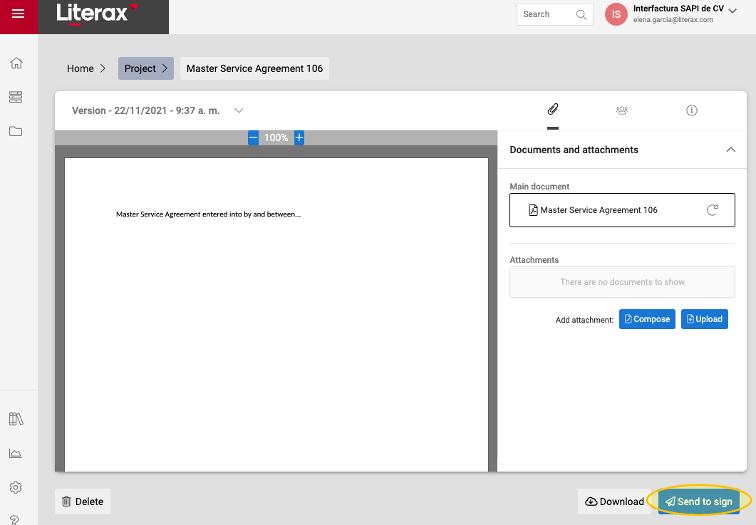
To create a document to send for approval of third parties and, once it’s approved, for signature:
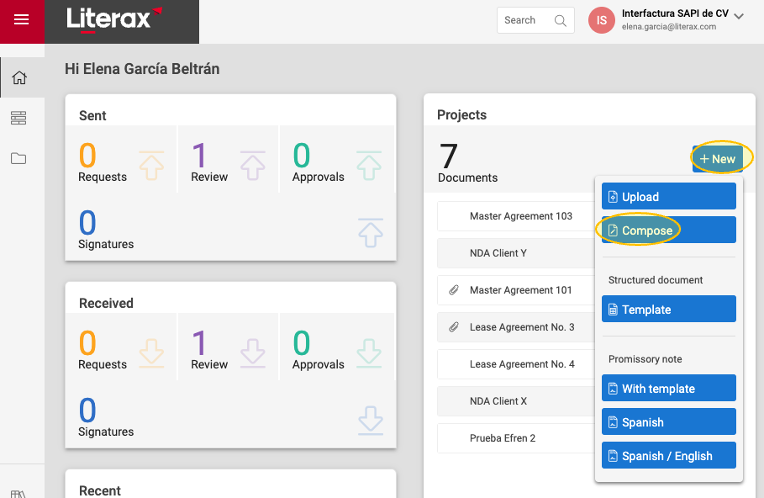
1. Go to Home, then click New
2. From the drop-down menu, select Compose.
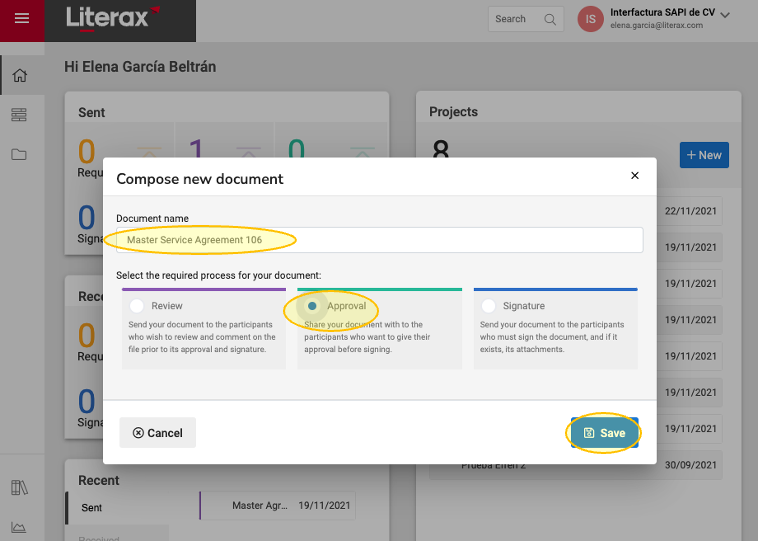
3. Choose a name for the document.
4. Select the Approval process.
5. Click Save.
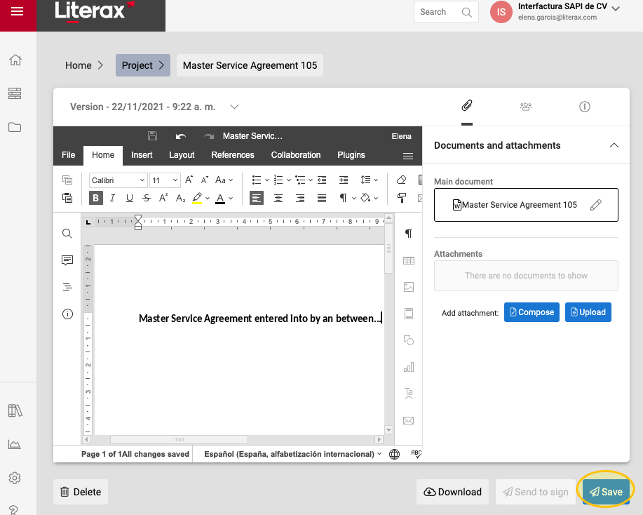
6. The word processor will open for you to start drafting your new document.
7. Once you’re done composing your document, click Save.
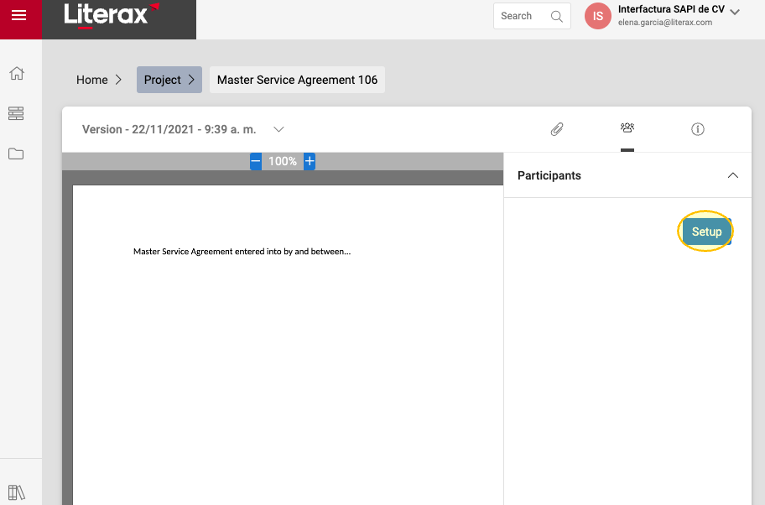
8. Add the participants who will approve the document by selecting the people icon; click Setup.
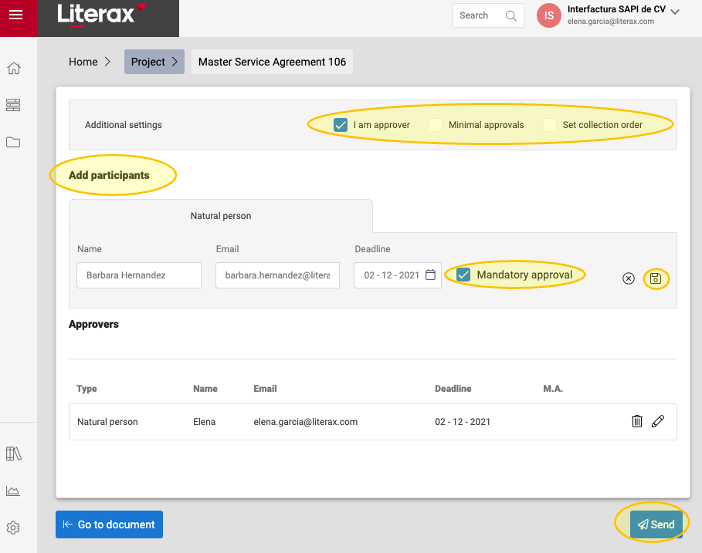
9. Add the information of the participants in the Approval process and click the save icon.
- You can select any of the following options: I am approver, minimal approvals, set collection order, mandatory approval and the deadline for a person to approve a document.
10. Once all the participants have been added, click Send.
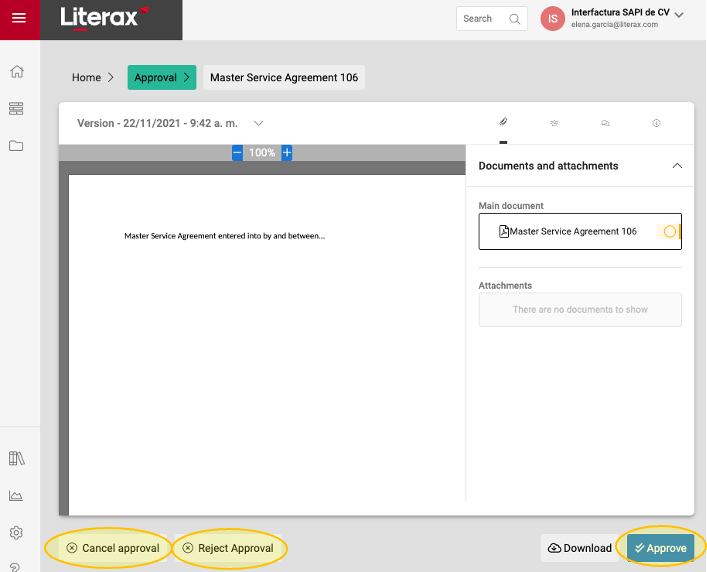
11. Once the document has been sent for approval, each approver may select between Approve or Rejected approval.
11.A. If you are the author of the document you can also choose to Cancel approval.
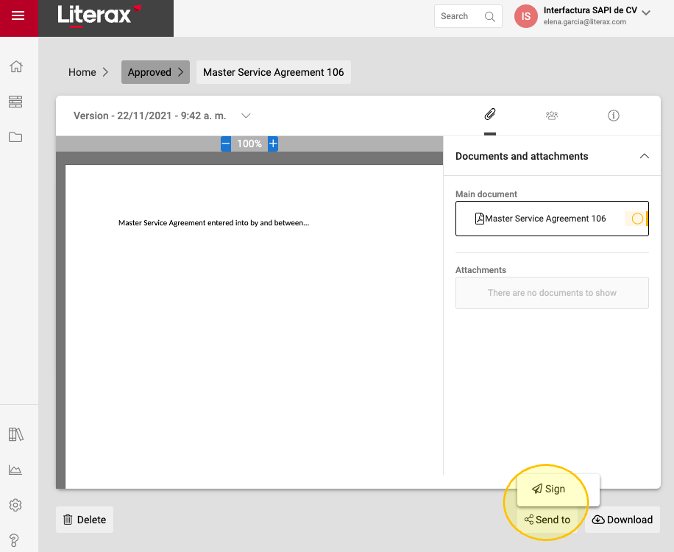
12. Once all the approvers have approved the document, the author may send it for signature by selecting Send to > Signature
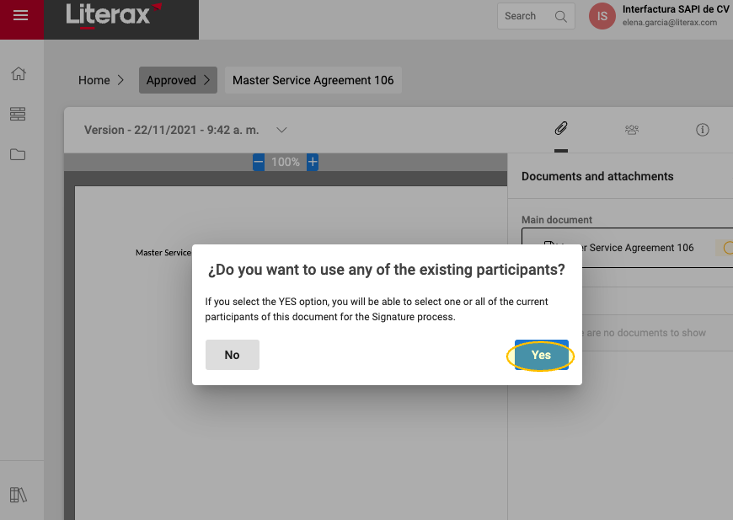
13. Then, you will be able to choose any or all the approvers to sign the document or add new participants by selecting Yes or only add new participants as signers by selecting No.
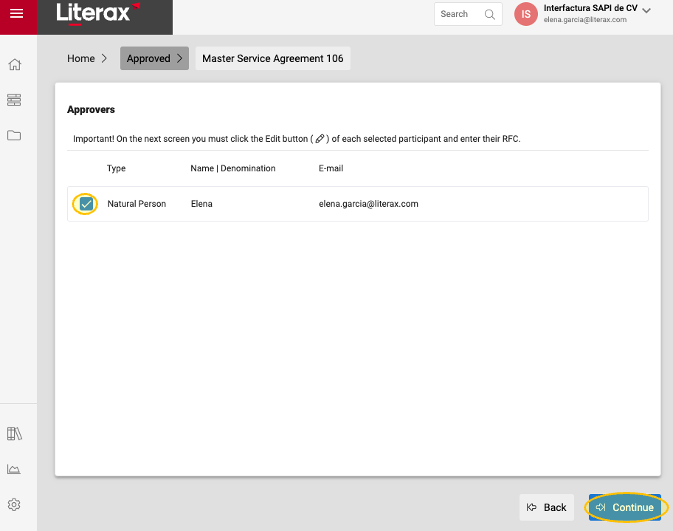
14. If you want any or all of your approvers to sign the document, select their name from the list. Then click Continue.
15. You can add new participants to sign the document. Once all the participants have been added click Go to document.
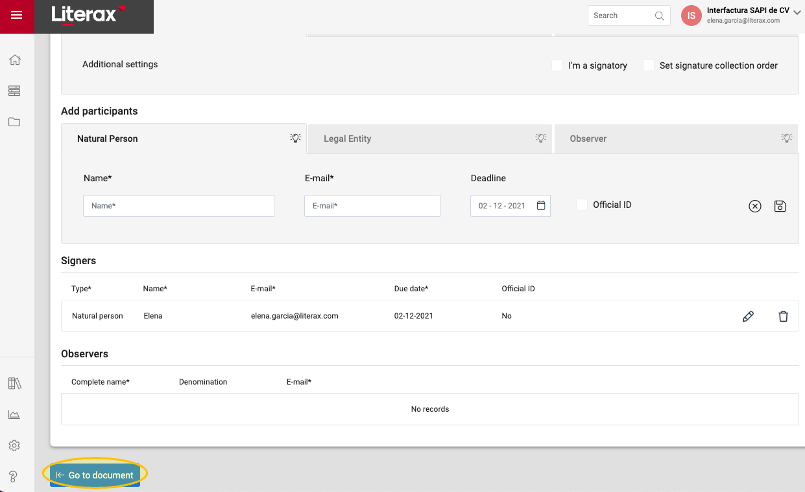
16. Finally, click Send to sign.